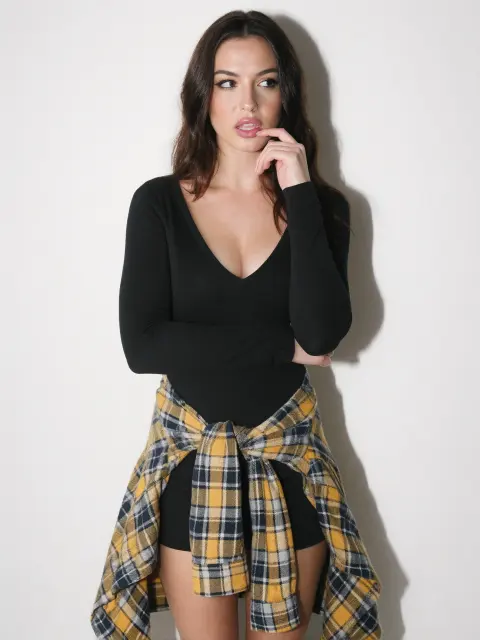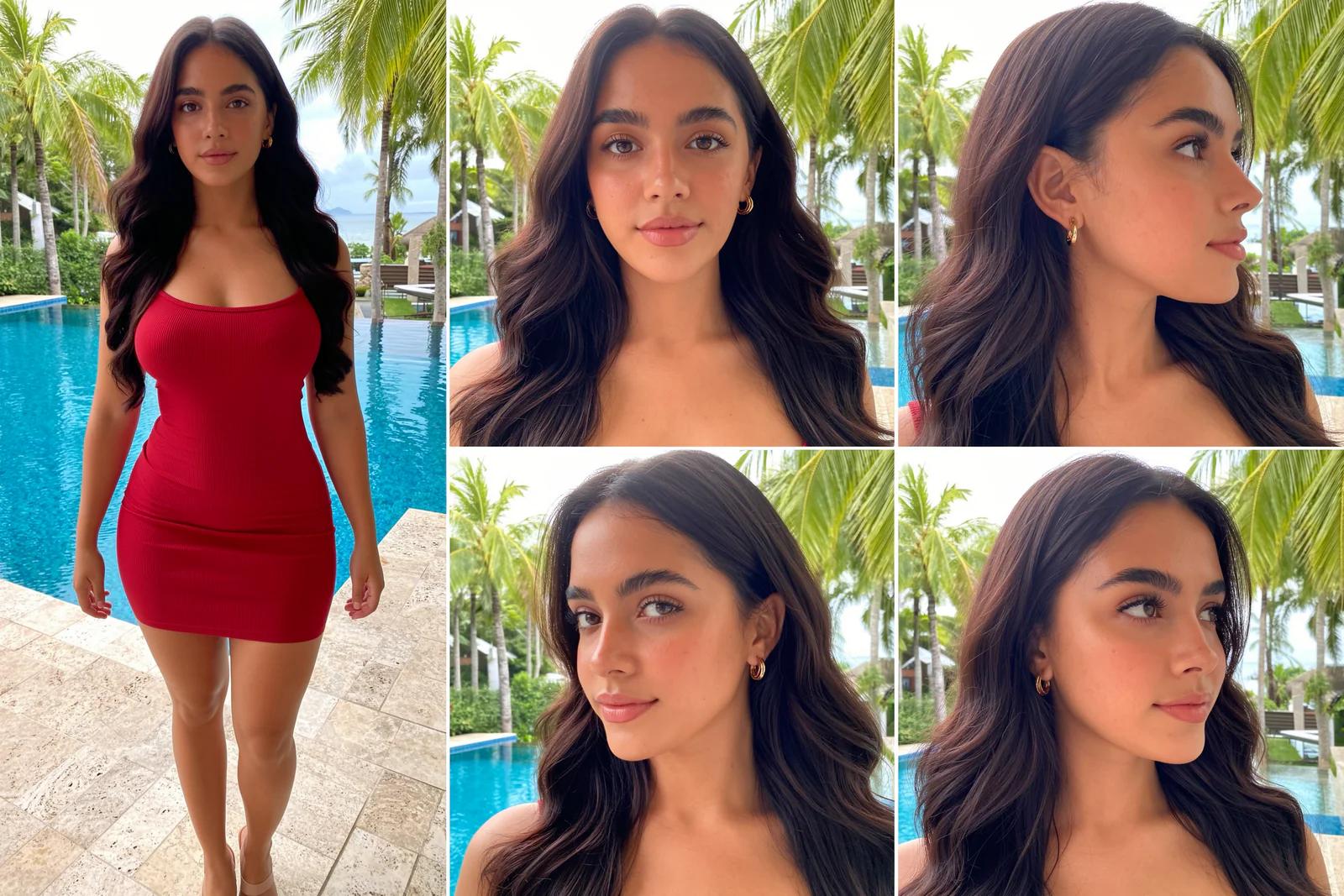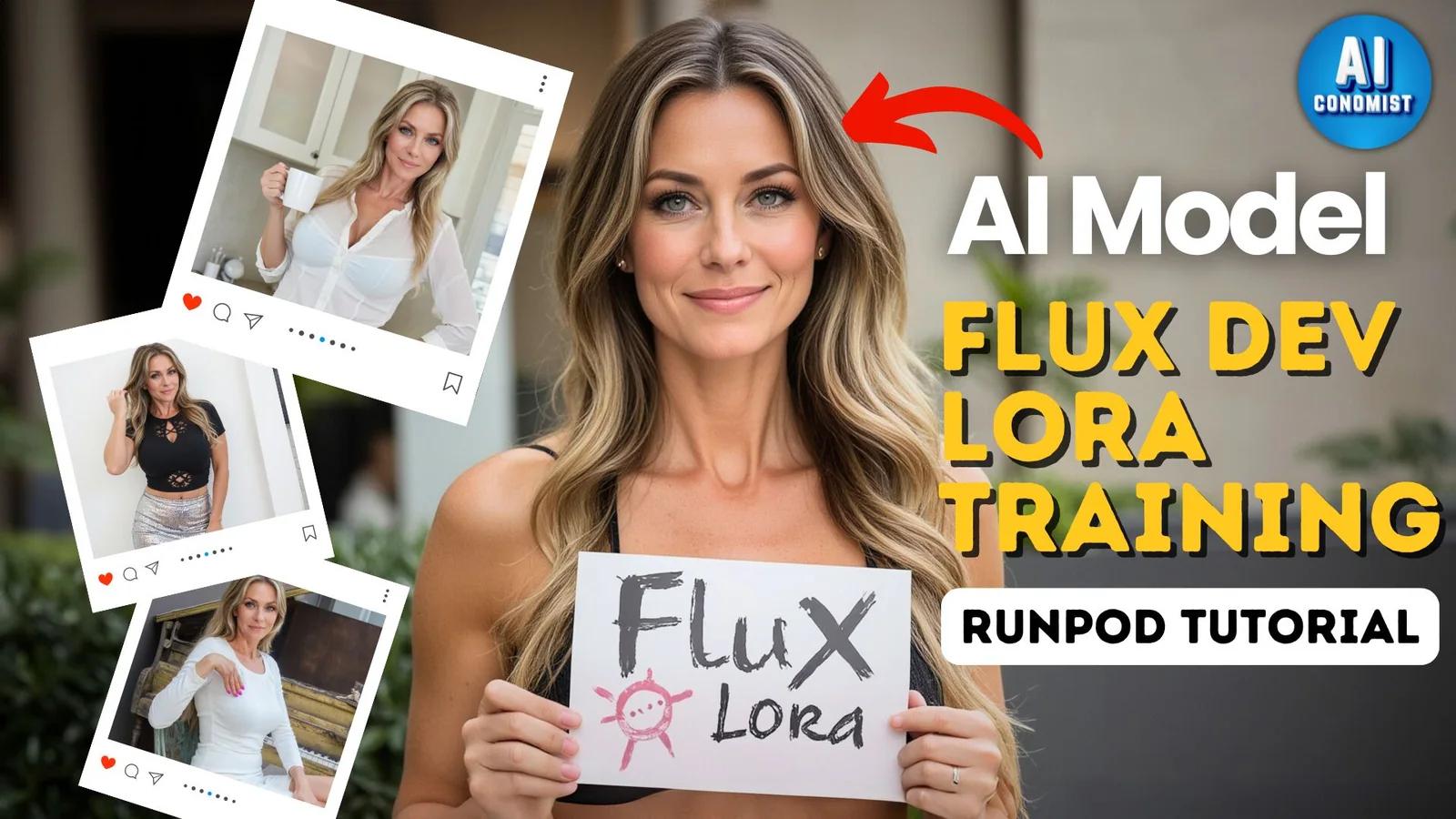
A Flux LoRA teaches FLUX one person, so your AI model looks the same in every image. You don't need an expensive GPU to train one: this guide rents a cloud GPU on RunPod, trains with AI-Toolkit by Ostris, and tests the LoRA in ComfyUI.
First published August 2024 on the old PixelAI Labs blog. Refreshed in October 2026: the steps below are checked, the links point to the current project pages, and newer options are mentioned where they help.
What you need
- A RunPod account with some credit.
- A Hugging Face account and an access token (FLUX.1 [dev] is a gated model: accept its license first).
- 15 to 30 good images of your character in different outfits, poses and places.
1. Prepare the dataset
- Name the images in order:
1.jpg,2.jpgand so on. - Caption them automatically in ComfyUI with Florence 2 (the workflows are in the downloads).
- Edit the captions so they describe your character the same way, for example:
Instagram photo of a 28-year-old woman with long auburn hair, sitting at a cafe table, natural daylight2. Start a pod
Deploy a new pod with a 48 GB GPU (the A40 was a good balance of price and power), a PyTorch template, 120 GB of container and volume disk, and port 8188 exposed for ComfyUI. Then click Connect to open JupyterLab.
3. Install ComfyUI and AI-Toolkit
In a JupyterLab terminal, in your workspace folder:
git clone https://github.com/Comfy-Org/ComfyUI.git
python -m venv venv
source venv/bin/activate
cd ComfyUI
pip install torch torchvision torchaudio --extra-index-url https://download.pytorch.org/whl/cu124
pip install -r requirements.txt
cd custom_nodes
git clone https://github.com/Comfy-Org/ComfyUI-Manager.git comfyui-manager
In a second terminal, install AI-Toolkit following its README, then save your Hugging Face token:
echo "HF_TOKEN=your_token_here" > .envBuilding an AI influencer? The UltraRealistic AI Influencer Pro course shows the complete system with today's models: design one character, train her own LoRA, and make KREA 2 photos and MiniMax H3 talking videos, on the cloud or your own GPU.
4. Configure and train
Copy the Flux LoRA example config from AI-Toolkit's config/examples folder to config/my_model.yaml, set your dataset folder, the trigger word and the output name, then start training:
python run.py config/my_model.yaml5. Download and test
AI-Toolkit saves sample images while it trains, so you can watch the character appear. When it finishes, download the LoRA from the output folder, put it in ComfyUI/models/loras, load it in a Flux workflow and prompt with your trigger word. Start around strength 0.8 to 1.0.
FAQ
How many images do I need for a Flux LoRA?
15 to 30 varied, high-quality images is a good start. Variety in outfits, angles and light matters more than the number.
How long does training take?
It depends on the GPU and the number of steps; on a 48 GB card a typical character LoRA takes well under a few hours.
Can I train locally instead?
Yes, AI-Toolkit also runs on a local NVIDIA GPU with enough VRAM (24 GB is comfortable for Flux).
Take it further
A character LoRA is the foundation of a consistent AI influencer. If you want a ready-made, tested system instead of assembling one yourself, the UltraRealistic AI Influencer Pro course walks through character design, LoRA training, KREA 2 photos and MiniMax H3 videos step by step, and the InstantClone AI Influencer Suite creates consistent images and motion videos from one character image. More free guides are on the PixelAI Labs blog.
Downloads
The ComfyUI workflows from the original guide: Florence 2 captioning and testing your Flux LoRA.