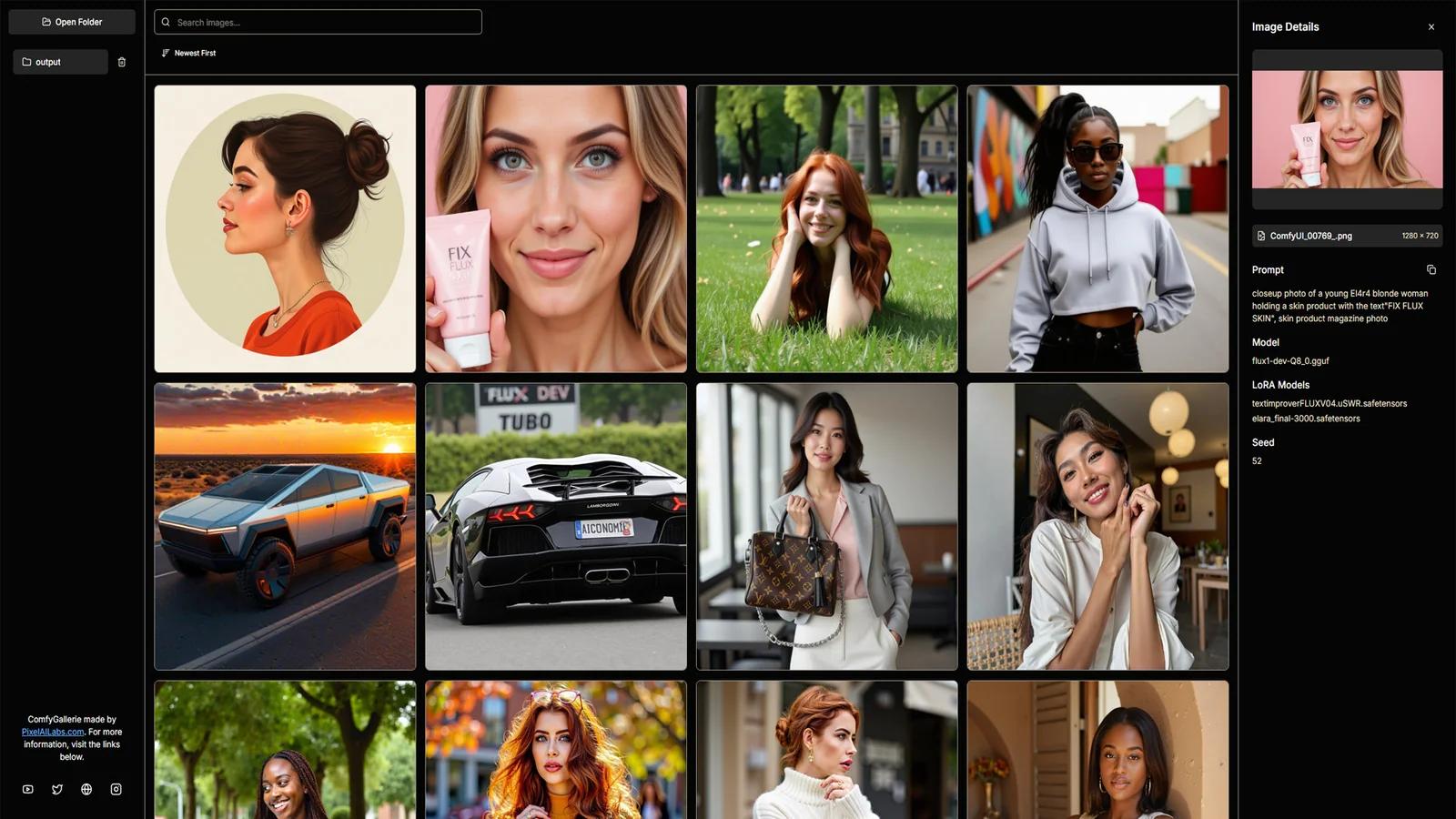
ComfyGallery (formerly ComfyGallerie) is our free image library app for ComfyUI. Point it at your output folder and browse your images with everything used to make them: the prompt, checkpoint, LoRAs, seed and resolution. No more opening workflows one by one to find the settings behind a good image.
First published January 2025 on the old PixelAI Labs blog. Refreshed in October 2026: the steps below are checked, the links point to the current project pages, and newer options are mentioned where they help.
Features
- Detailed metadata for each image: resolution, positive prompt, checkpoint model, LoRA models and seed
- Open and switch between several folders, up to 50 images per page
- Search your prompts by keyword
- Sort by newest or oldest
- Click an image to see its details in a separate window
Install
1. Install Node.js. Download the LTS version from nodejs.org and keep Add to PATH ticked on Windows.
2. Get ComfyGallery from GitHub, either with Git:
git clone https://github.com/Pixelailabs/ComfyGallery.gitor with Code → Download ZIP on the repository page, then extract it.
3. Follow the start instructions in the repository's README to install its packages and launch the app.
Building an AI influencer? The UltraRealistic AI Influencer Pro course shows the complete system with today's models: design one character, train her own LoRA, and make KREA 2 photos and MiniMax H3 talking videos, on the cloud or your own GPU.
Use it
- Open a folder: select your ComfyUI output folder.
- Switch folders: open several and move between them.
- Search: type a word from your prompts, for example:
golden hour- Filter: sort by newest or oldest.
- Details: click an image to read its prompt, models, LoRAs, seed and size.
Images keep their metadata only when they are saved by ComfyUI as PNG. Re-saving them in other apps or converting to JPG usually removes it.
FAQ
Is ComfyGallery free?
Yes, it's free and open on GitHub.
Why do some images show no prompt?
The image no longer has ComfyUI's metadata, usually because it was converted or edited in another app.
Where is my ComfyUI output folder?
Take it further
Knowing exactly how each image was made makes good results repeatable. If you want a ready-made, tested system instead of assembling one yourself, the UltraRealistic AI Influencer Pro course walks through character design, LoRA training, KREA 2 photos and MiniMax H3 videos step by step, and the InstantClone AI Influencer Suite creates consistent images and motion videos from one character image. More free guides are on the PixelAI Labs blog.